Building a CI/CD Pipeline for FastAPI Application with GitHub Actions and AWS EC2
Building an automated CI/CD pipeline that deploys a FastAPI app to AWS EC2 with GitHub Actions and Docker.
Introduction
This post documents my experience building an automated CI/CD pipeline for a FastAPI application. The goal was simple: push code to GitHub, and it automatically deploys to AWS EC2. What seemed straightforward turned into a multi-hour debugging session that taught me valuable lessons about Docker, async/sync database drivers, and SSH authentication.
Historical scope (2025-11-25): The examples below reconstruct the first working deployment, where MySQL ran in the same Compose project and the app was exposed on port 8000. Wapang later moved to an external MySQL RDS database and an nginx/certbot HTTPS stack on ports 80/443. Treat this post as a troubleshooting record; continue with the HTTPS deployment post for the later topology.
Architecture Overview
The pipeline architecture follows a standard CI/CD flow:
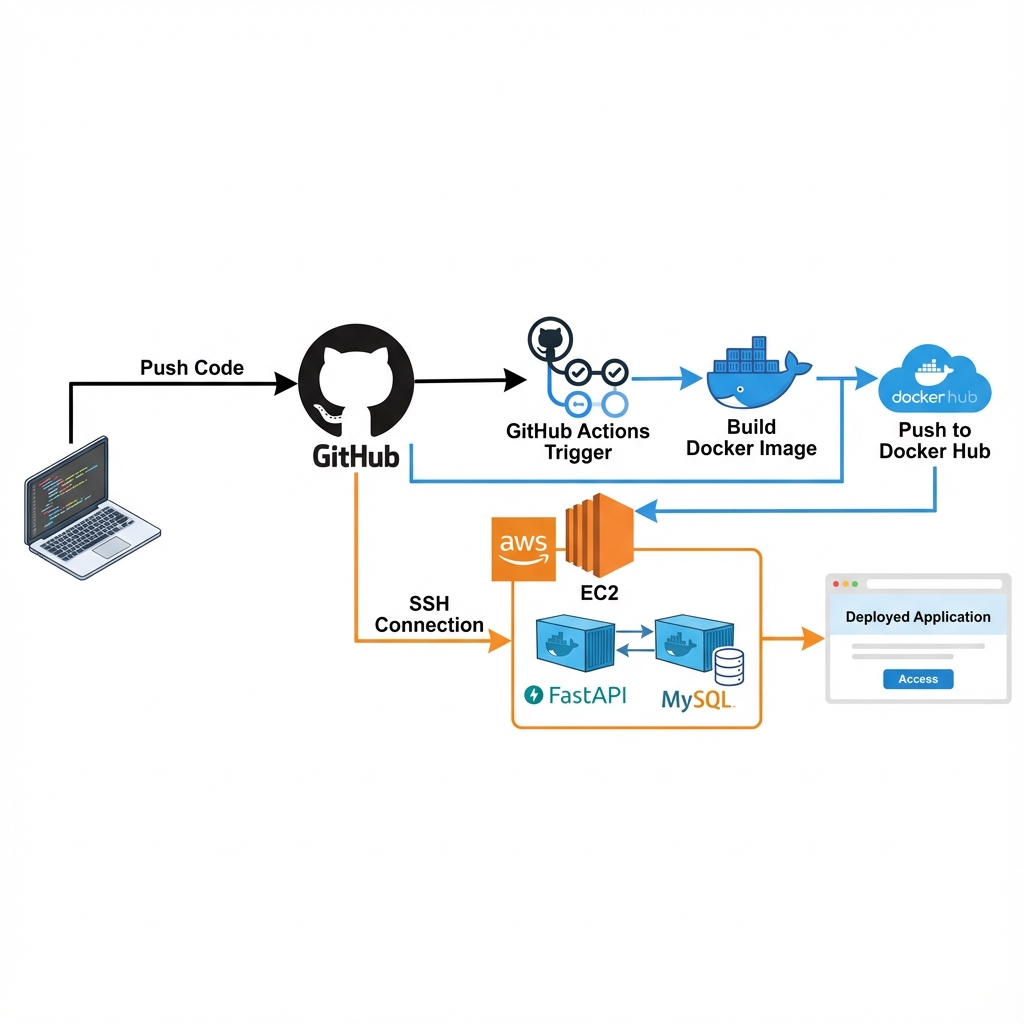
Tech Stack:
- Application: FastAPI + MySQL (Docker Compose)
- CI/CD: GitHub Actions
- Container Registry: Docker Hub
- Deployment Target: AWS EC2 (Ubuntu)
Workflow:
- Developer pushes code to
mainbranch - GitHub Actions triggers automatically
- Docker image is built and pushed to Docker Hub
- GitHub Actions SSHs into EC2
- EC2 pulls the image tagged with that commit SHA and converges the Compose stack
Implementation
Docker Compose Configuration
The application uses two containers orchestrated by Docker Compose:
1
2
3
4
5
6
7
8
9
10
11
12
13
14
15
16
17
18
19
20
21
22
23
24
25
26
27
28
29
30
31
32
33
34
35
36
37
services:
  db:
    image: mysql:8.0
    container_name: app_db
    environment:
      MYSQL_ROOT_PASSWORD: ${DB_ROOT_PASSWORD:?DB_ROOT_PASSWORD is required}
      MYSQL_DATABASE: appdb
      MYSQL_USER: appuser
      MYSQL_PASSWORD: ${DB_PASSWORD:?DB_PASSWORD is required}
    volumes:
      - db_data:/var/lib/mysql
    healthcheck:
      test: ["CMD", "mysqladmin", "ping", "-h", "localhost"]
      timeout: 20s
      retries: 10

  app:
    image: ${APP_IMAGE:-your-dockerhub-user/myapp:latest}
    container_name: app
    env_file:
      - .env.prod
    ports:
      - "8000:8080"
    command: sh -c "uv run alembic upgrade head && uv run uvicorn app.main:app --host 0.0.0.0 --port 8080"
    restart: unless-stopped
    healthcheck:
      test: ["CMD", "python", "-c", "import urllib.request; urllib.request.urlopen('http://127.0.0.1:8080/docs')"]
      interval: 5s
      timeout: 3s
      retries: 20
      start_period: 20s
    depends_on:
      db:
        condition: service_healthy

volumes:
  db_data:
Key Design Choice: The depends_on with service_healthy ensures the database is fully ready before the application starts. This prevents connection errors during startup.
The /docs probe is suitable only if Swagger UI remains enabled. A production application should expose a lightweight readiness endpoint and point both the container health check and deployment verification at that endpoint.
Compose interpolation happens before env_file is passed into the app container. Keep a server-only .env.compose containing DB_ROOT_PASSWORD and DB_PASSWORD, while .env.prod contains only the app’s runtime variables (including its non-root DB_PASSWORD). Restrict both with chmod 600 and invoke Compose with --env-file .env.compose. This keeps the MySQL root password out of the app container; the :? expressions above also fail fast instead of initializing MySQL with an empty secret. Do not commit either file.
Note: Modern Docker invokes Compose through the
docker compose(v2 plugin) command rather than the legacy standalonedocker-composebinary, and the top-levelversionkey is now obsolete (Compose v2 ignores it and emits a warning).
GitHub Actions Workflow
1
2
3
4
5
6
7
8
9
10
11
12
13
14
15
16
17
18
19
20
21
22
23
24
25
26
27
28
29
30
31
32
33
34
35
36
37
38
39
40
41
42
43
44
45
46
47
48
49
50
51
52
name: CI/CD Pipeline

on:
  push:
    branches: [main]

env:
  IMAGE: ${{ secrets.DOCKER_HUB_USERNAME }}/myapp

jobs:
  build:
    runs-on: ubuntu-latest
    steps:
      - uses: actions/checkout@v4

      - name: Login to Docker Hub
        uses: docker/login-action@v3
        with:
          username: ${{ secrets.DOCKER_HUB_USERNAME }}
          password: ${{ secrets.DOCKER_HUB_ACCESS_TOKEN }}

      - name: Build and Push
        run: |
          set -eu
          docker build -t "$IMAGE:$GITHUB_SHA" -t "$IMAGE:latest" .
          docker push "$IMAGE:$GITHUB_SHA"
          docker push "$IMAGE:latest"

  deploy:
    needs: build
    runs-on: ubuntu-latest
    steps:
      - name: Deploy to EC2
        uses: appleboy/ssh-action@v1.0.3
        env:
          IMAGE_TAG: ${{ github.sha }}
        with:
          host: ${{ secrets.EC2_HOST }}
          username: ${{ secrets.EC2_USER }}
          key: ${{ secrets.EC2_SSH_KEY }}
          envs: IMAGE,IMAGE_TAG
          script: |
            set -eu
            cd ~/app
            sudo docker pull "$IMAGE:$IMAGE_TAG"
            sudo env APP_IMAGE="$IMAGE:$IMAGE_TAG" \
              docker compose --env-file .env.compose \
              up -d --wait --wait-timeout 120
            curl --fail --silent --show-error \
              --retry 10 --retry-all-errors --retry-delay 3 \
              http://127.0.0.1:8000/docs >/dev/null
            sudo docker image prune -f
The workflow uses an immutable commit-SHA tag, explicitly forwards IMAGE and IMAGE_TAG through ssh-action’s envs input, and stops on the first failed command. Compose-time database values remain in the pre-provisioned .env.compose; app runtime values remain in .env.prod. docker compose up --wait and the HTTP probe prevent a merely-started but unhealthy container from being reported as a successful deployment. It does not implement automatic rollback; keep a known-good tag and add a rollback step before using this as a production template.
The remote docker pull also assumes that the image is public or that EC2 already has a scoped registry credential. Logging in on the GitHub-hosted build runner does not authenticate the separate EC2 Docker daemon.
Despite the historical “CI/CD” name, the original workflow only built and deployed. A complete pipeline should run the test suite in a separate job and make build depend on it. Current Wapang later added that pytest gate; it is intentionally not back-projected into this dated troubleshooting snapshot.
Problem 1: Missing Database Container
Symptom
1
2
sqlalchemy.exc.OperationalError: (MySQLdb.OperationalError)
(2003, "Can't connect to MySQL server on 'db'")
Root Cause
My initial docker-compose.yaml only defined the application service. I assumed the database would be handled separately, but the application expected a container named db on the same Docker network.
Solution
Added MySQL service to docker-compose.yaml with:
- Proper health check to ensure database readiness
- Named volumes for data persistence
depends_onwith health check condition
Lesson: Model the deployment that actually exists. A Compose-managed database must be declared with readiness and persistent storage. An external database must not be added as a fake local service; instead, inject its endpoint and restrict database ingress to the application host or security group. Current Wapang uses the latter RDS topology.
Problem 2: Alembic Async Driver Issue
Symptom
1
2
sqlalchemy.exc.MissingGreenlet: greenlet_spawn has not been called;
can't call await_only() here
Root Cause
The application correctly uses aiomysql (async driver) for runtime database operations. My Alembic env.py, however, was the default synchronous template, which calls connectable.connect() directly and therefore cannot drive an async (+aiomysql) URL. (Alembic can run migrations asynchronously — see its asyncio cookbook recipe — but that requires an async-aware env.py, which I did not have here.)
Analysis
Looking at the error stack trace:
1
2
File "/app/wapang/database/alembic/env.py", line 72, in run_migrations_online
    with connectable.connect() as connection:
Alembic’s env.py was trying to create a synchronous connection using an async driver URL.
Solution
Modified alembic/env.py to force synchronous driver during migrations:
1
2
3
4
5
6
7
8
9
10
11
12
13
14
15
16
from wapang.database.settings import DB_SETTINGS

# Force sync driver for Alembic
sync_url = DB_SETTINGS.url.replace("+aiomysql", "+pymysql")
config.set_main_option("sqlalchemy.url", sync_url)

def run_migrations_online() -> None:
    connectable = create_engine(sync_url, poolclass=pool.NullPool)

    with connectable.connect() as connection:
        context.configure(
            connection=connection,
            target_metadata=target_metadata
        )
        with context.begin_transaction():
            context.run_migrations()
Lesson: Async and sync contexts require different database drivers. With this sync env.py setup, a sync URL (+pymysql) was needed even though the app runs on async (+aiomysql). If you instead adopt Alembic’s async env.py template, you can keep the async driver for migrations too.
Problem 3: Missing Authentication Secrets
Symptom
1
2
3
pydantic_core._pydantic_core.ValidationError: 2 validation errors for AuthSettings
ACCESS_TOKEN_SECRET: Field required
REFRESH_TOKEN_SECRET: Field required
Root Cause
The .env.prod file on EC2 was missing authentication-related environment variables that the application validates on startup using Pydantic.
Solution
Added to .env.prod:
1
2
ACCESS_TOKEN_SECRET=your-access-token-secret-here
REFRESH_TOKEN_SECRET=your-refresh-token-secret-here
Created env.prod.example in the repository to document all required variables:
1
2
3
4
5
6
7
8
9
10
11
12
13
14
15
16
# Database
DB_DIALECT=mysql
DB_DRIVER=aiomysql
DB_HOST=db
DB_PORT=3306
DB_USER=appuser
DB_PASSWORD=secure_password
DB_DATABASE=appdb

# Application
DEBUG=False
SECRET_KEY=your-secret-key

# Authentication
ACCESS_TOKEN_SECRET=your-access-token-secret
REFRESH_TOKEN_SECRET=your-refresh-token-secret
Lesson: Always maintain an example environment file in version control to document required configuration variables.
Problem 4: SSH Key Authentication Failure
Symptom
1
2
ssh: handshake failed: ssh: unable to authenticate,
attempted methods [none], no supported methods remain
Root Cause
The value in EC2_SSH_KEY was not a usable private key for the target account. The secret must contain the complete multiline private key whose public counterpart is authorized for EC2_USER; a public key, a .ppk file, a truncated PEM/OpenSSH key, or a key for a different EC2 user will all fail authentication.
Solution
I re-entered the full private-key text in GitHub Secrets, preserving its line breaks, and verified that the matching public key was present in the deployment user’s ~/.ssh/authorized_keys. Modern keys may use OPENSSH PRIVATE KEY; RSA keys may use RSA PRIVATE KEY or the generic PKCS#8 PRIVATE KEY envelope, so do not rewrite the header to match this example.
Redacted RSA example:
1
2
3
4
5
-----BEGIN RSA PRIVATE KEY-----
MIIEpAIBAAKCAQEAx...
(multiple lines)
...ending_characters
-----END RSA PRIVATE KEY-----
For a real pipeline, use a dedicated deployment key with the minimum required account permissions, store only the private half in GitHub Secrets, and rotate it if its value is ever printed or copied into a tracked file.
Lesson: Preserve the complete private-key format, but also verify the key-to-user mapping; formatting is only one possible cause of an SSH authentication failure.
Problem 5: Docker Permission Denied in CI/CD
Symptom
1
2
permission denied while trying to connect to the Docker daemon socket
at unix:///var/run/docker.sock
Root Cause
The deployment session could not access /var/run/docker.sock. SSH does not inherently discard supplementary groups: a new SSH login receives the groups configured for that user. The common failure is adding the user with usermod -aG docker ... and testing from a session that predates the change, using a different EC2_USER, or never confirming that the group update succeeded. newgrp docker changes only the current shell and is not a persistent CI configuration step.
Solution
First diagnose the account on EC2, then disconnect and reconnect after any group change:
1
2
3
4
5
id
getent group docker
sudo usermod -aG docker "$USER"
# Log out completely, reconnect, then verify:
docker info
For this small deployment I deliberately kept privileged Docker commands behind sudo. Pass environment variables with sudo env; a plain assignment before sudo is not reliably preserved:
1
2
3
4
5
6
7
8
9
10
11
12
13
14
15
16
- name: Deploy to EC2
  uses: appleboy/ssh-action@v1.0.3
  env:
    IMAGE: ${{ secrets.DOCKER_HUB_USERNAME }}/myapp
    IMAGE_TAG: ${{ github.sha }}
  with:
    host: ${{ secrets.EC2_HOST }}
    username: ${{ secrets.EC2_USER }}
    key: ${{ secrets.EC2_SSH_KEY }}
    envs: IMAGE,IMAGE_TAG
    script: |
      set -eu
      cd ~/app
      sudo docker pull "$IMAGE:$IMAGE_TAG"
      sudo env APP_IMAGE="$IMAGE:$IMAGE_TAG" \
        docker compose --env-file .env.compose up -d --wait
Membership in the docker group is effectively root-equivalent because it grants control of the Docker daemon. Choose one reviewed model—restricted sudo or intentional Docker-group access—rather than treating the group as a harmless workaround.
Lesson: Verify the identity and supplementary groups of the actual deployment session. Use sudo env NAME=value command when a privileged command needs selected variables.
Results
After resolving the observed issues, the deployment completed and the application responded successfully:
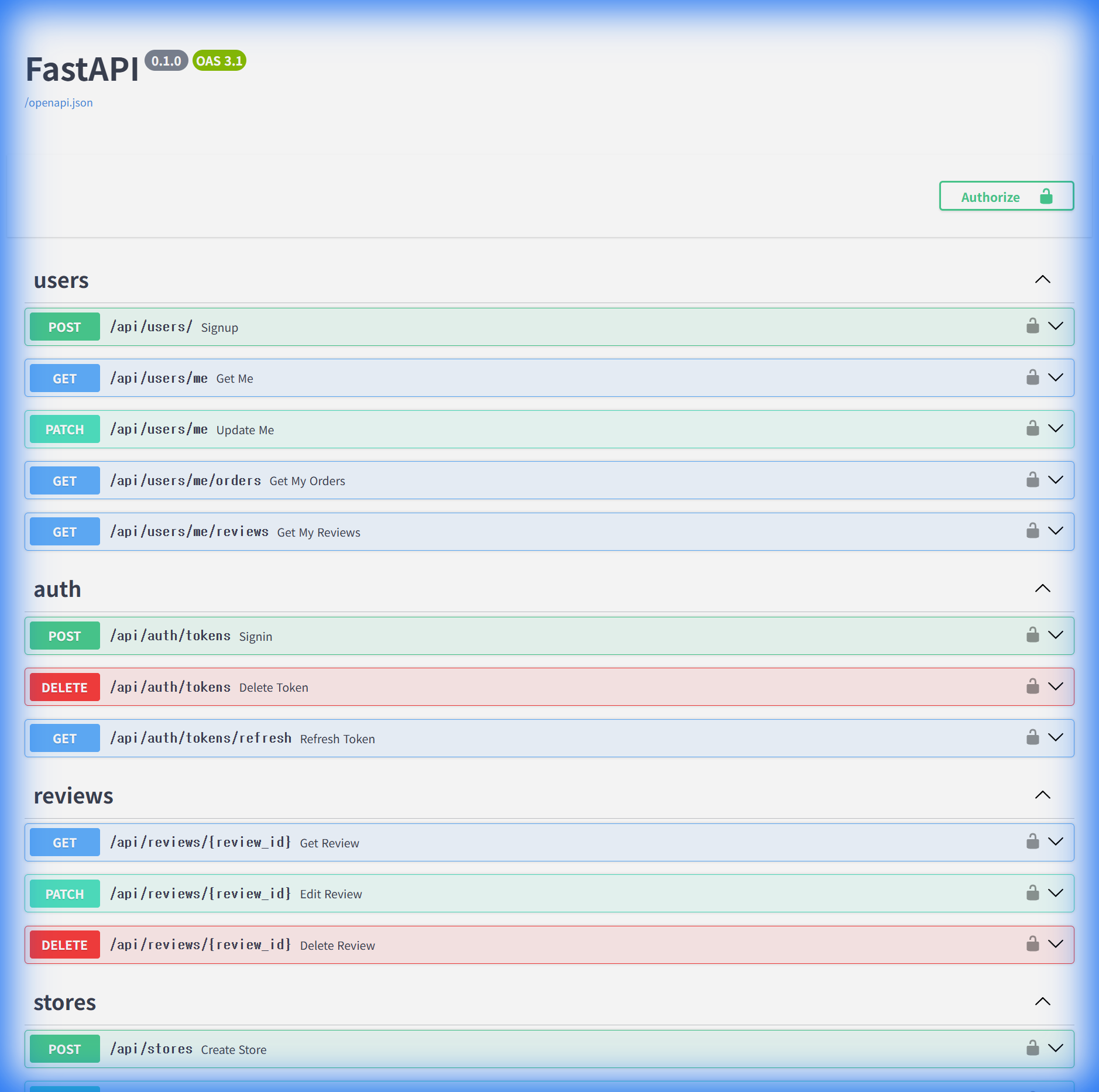
The application is now accessible at the deployed endpoint, with Swagger UI showing all available API routes.
Deployment Metrics:
- Observed build time: ~2-3 minutes
- Observed deployment time: ~30 seconds before the explicit wait/probe was added
- Observed end-to-end time: under 4 minutes for this small image and host
- These are one-environment observations, not latency or availability guarantees
Note:
docker compose upmay recreate the running app container, so this single-instance deployment can still have a brief interruption. Waiting for health prevents a false success report but does not create zero-downtime. That requires blue-green or rolling deployment with a reverse proxy switching upstreams only after the new instance passes readiness checks.
Security Considerations
- Secrets Management: Keep secret values out of the repository and logs; GitHub Secrets injects them but does not prevent a script from printing them
- Environment Separation: Compose-only database bootstrap values live in
.env.compose; application runtime values live in.env.prod, both server-side with restrictive permissions - SSH Key Security: Use a dedicated, rotatable deployment key; keep its private half only in GitHub Secrets
- Network Rules: The initial direct deployment needed application port 8000, ideally restricted to trusted sources. The current HTTPS topology exposes 80/443 through nginx, restricts SSH, and allows RDS port 3306 only from the application security group—never from the public internet
Key Takeaways
- Database Health Checks: Always wait for dependencies to be ready before starting dependent services
- Async vs Sync Drivers: A sync Alembic
env.pyneeds a sync driver even when the app uses async; Alembic also supports an asyncenv.pyif you prefer to keep the async driver - Environment Documentation: Maintain example config files to document all required variables
- SSH Authentication: Preserve the complete private key and verify that it matches the target user
- CI/CD Permissions: Verify the deployment user’s groups and choose an explicit Docker privilege model
Operational Notes
A few properties of the corrected example are deliberate:
- Immutable tags: The build pushes the commit SHA as well as
latest, and deployment pulls the SHA. Record the last known-good tag for rollback. - Conservative pruning:
docker image prune -fremoves dangling layers only. The more aggressive-afcan delete an unused rollback image. - No blanket
compose down:docker compose upconverges the project without first stopping the database. On a stack with an external RDS database, there is no DB container to manage at all. - Failure propagation:
set -eu,docker compose up --wait, and the HTTP probe make command, health, and reachability failures fail the Actions step. - Remaining gap: A failed rollout still needs an explicit rollback command and alerting; health checking alone does not restore the old container.
For a Compose-managed database, target only app during routine application rollouts once the stack exists. For the current Wapang RDS topology, keep the external database out of Compose and validate EC2-to-RDS connectivity before migration and startup.
Conclusion
Building this CI/CD pipeline took significantly longer than expected due to the various issues encountered. However, each problem taught valuable lessons about Docker containerization, database driver compatibility, and deployment automation.
The end result automates the repeated deployment steps and reduces manual error. It is still a single-instance learning deployment: production readiness additionally requires rollback, monitoring, least-privilege access, backups, and a tested recovery procedure.