VS Code Markdown PDF Extension: Tips and Gotchas
Practical tips for using the Markdown PDF extension in VS Code, including common pitfalls with Mermaid diagrams.
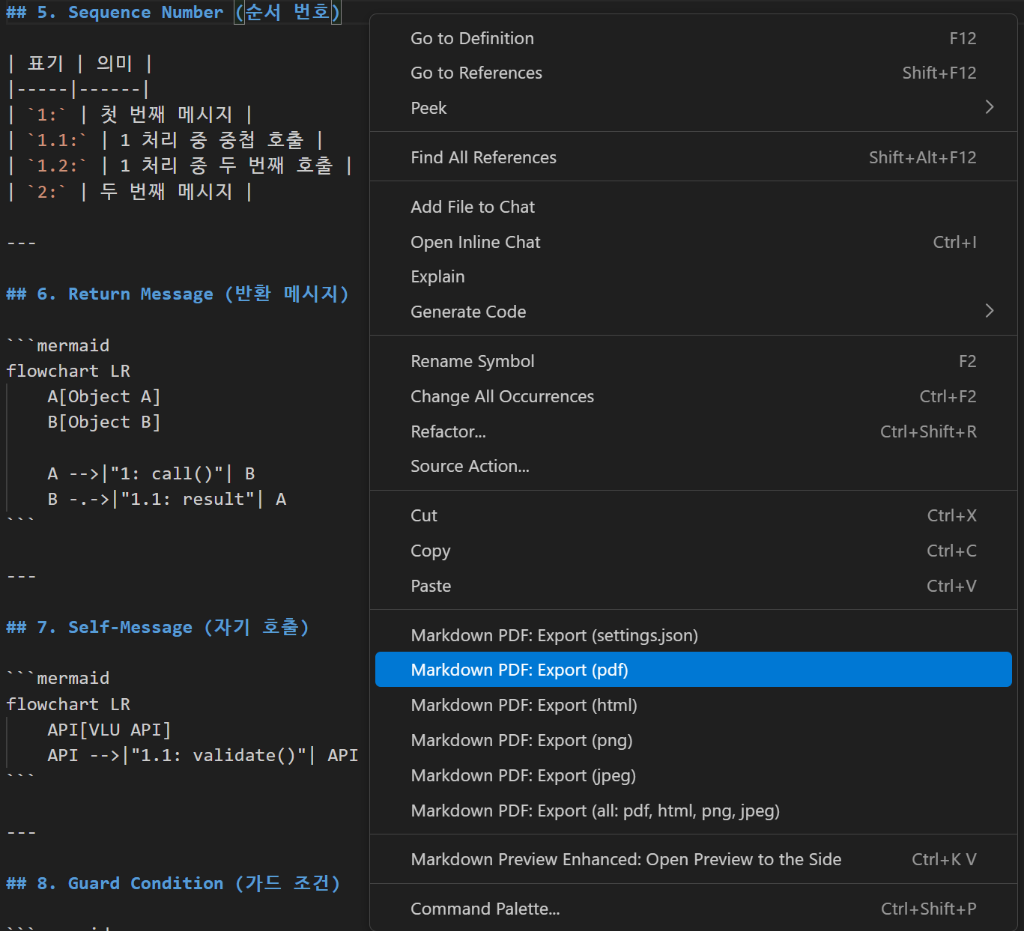
Introduction
I spent 2 hours debugging a Mermaid diagram that worked perfectly in VS Code’s preview but crashed during PDF export. The error message was just “Syntax error in text” with no line number. After multiple trial-and-error sessions, I compiled this list of gotchas that I wish I knew earlier.
Most of this is an empirical observation from my VS Code Markdown-PDF (Chromium/Puppeteer) export pipeline, not documented Mermaid behavior: the renderer parses
<...>as HTML, so a label like<meta>is read as an HTML tag and breaks the export. The only flowchart pitfalls Mermaid’s docs warn about directly are the lowercaseendkeyword and edges starting witho/x.
The Three Common Traps
Before diving into details, here are the most common causes of PDF export failures:
| Trap | Problem | Solution |
|---|---|---|
| Parser-Breaking Tokens | AND, OR can break edge labels | Use _AND_, _OR_ |
| Angle Brackets | <row> looks like HTML | Escape as <row>, quote, or drop the brackets (quick hack: add non-English, e.g. <해당row>) |
| Real HTML Tags | <meta>, <div> consistently failed in my export pipeline | Escape as <meta>, quote, or rename (quick hack: <메타>, <구역>) |
Trap #1: Tokens That Can Break the Parser in Edge Labels
Some uppercase tokens like AND and OR can confuse the Mermaid parser when they appear in edge labels, leading to “Syntax error in text”. To be precise: Mermaid only officially reserves the lowercase keyword end. The behavior below is best treated as a practical, defensive workaround rather than a documented list of reserved operators.
flowchart LR
    subgraph "Error"
        A1[A] -->|"AND"| B1[B]
    end
    subgraph "Works"
        A2[A] -->|"_AND_"| B2[B]
    end
Tokens to Watch For
| Token | Status | Alternative |
|---|---|---|
AND | Error | _AND_ |
OR | Error | _OR_ |
NOT | Usually OK | _NOT_ (safer) |
IN | Usually OK | _IN_ (safer) |
The most portable fix is to rephrase the whole edge label so the operator words never appear at all (e.g. q: cond1 + cond2 or q: all conditions).
Trap #2: Angle Brackets = HTML?
The PDF exporter uses Puppeteer (headless Chrome). Content in angle brackets can be interpreted as HTML tags.
Which Brackets Fail?
| Content | Result | Why |
|---|---|---|
<row> | Error | Looks like HTML tag |
<unchanged> | Error | Looks like HTML tag |
<1개> | Works | Number makes it invalid HTML |
<해당row> | Works | Korean makes it invalid HTML |
Fix: Escape, Quote, or Remove the Brackets
The robust fix is to stop the brackets from looking like HTML: escape them as HTML entities (</>), wrap the text in quotes, or just drop the angle brackets entirely.
1
2
3
4
5
Before (Error):
A -.->|"200(rows=<row>)"| T
After (Works, escaped):
A -.->|"200(rows=<row>)"| T
As a secondary quick hack, adding a non-English character also makes the content invalid as HTML so the parser leaves it alone:
1
A -.->|"200(rows=<해당row>)"| T
Trap #3: Real HTML Tag Names
If your placeholder happens to be a real HTML tag name, it consistently failed in my VS Code Markdown PDF (Puppeteer) export pipeline. The reliable fix is the same as Trap #2: escape the brackets as </>, quote the text, or drop the brackets and rename the placeholder. Adding a non-English token (the Korean form below) is a secondary quick hack.
| Tag | Problem | Alternative |
|---|---|---|
<meta> | Real HTML tag | <meta>, META (quick hack: <메타>) |
<div> | Real HTML tag | <div>, DIV (quick hack: <구역>) |
<span> | Real HTML tag | <span>, SPAN (quick hack: <범위>) |
<br> | Real HTML tag | Remove or use / |
Quick Fix Checklist
Before exporting to PDF, search for these patterns:
flowchart TD
    Q1{Export Failed?}
    Q1 -->|Yes| C1["Search: AND, OR"]
    C1 --> F1["Replace with _AND_, _OR_"]

    F1 --> C2["Search: <English-only>"]
    C2 --> F2["Escape/quote/remove (quick hack: add Korean <한글>)"]

    F2 --> C3["Search: <meta>, <div>, <span>"]
    C3 --> F3["Escape/rename (quick hack: <메타>, <구역>)"]

    F3 --> Q2{Still Failing?}
    Q2 -->|Yes| A1["Export incrementally to find the problematic section"]
    Q2 -->|No| A2["Success!"]
Configuration Tips
Fix Korean Text Rendering
If Korean appears as boxes, use a local stylesheet plus a system-installed Korean font. A remote Google Fonts URL is unreliable for PDF export — the extension’s docs note online CSS works for JPG/PNG but has problems with PDF, and markdown-pdf.styles expects local paths:
1
2
3
{
  "markdown-pdf.styles": ["./korean.css"]
}
1
2
/* korean.css */
body { font-family: 'Noto Sans KR', sans-serif; }
Install the Noto Sans KR font on the machine that runs the export (Chromium/Puppeteer uses installed system fonts for PDF). A bare css2 Google Fonts URL only ships @font-face rules with no body font-family, so it wouldn’t change the render font even if it loaded.
Page Layout Settings
1
2
3
4
5
6
7
{
  "markdown-pdf.format": "A4",
  "markdown-pdf.margin.top": "20mm",
  "markdown-pdf.margin.bottom": "20mm",
  "markdown-pdf.margin.left": "15mm",
  "markdown-pdf.margin.right": "15mm"
}
Workflow: Avoiding Export Pain
flowchart LR
    W[Write section] --> P[Preview in VS Code]
    P --> E[Export to PDF]
    E --> Q{Success?}
    Q -->|Yes| W
    Q -->|No| D[Debug with checklist]
    D --> W
Key: Export after every few sections, not at the end. Finding the problematic line in a 200-line document is painful.
Summary
| Problem | Quick Fix |
|---|---|
AND/OR errors | _AND_/_OR_ |
<english> fails | Escape <english>, quote, or remove (quick hack: <한글>) |
<meta> fails | Escape <meta> or rename META (quick hack: <메타>) |
| Korean is broken | Add Noto Sans KR font |
| Export is slow | Split into smaller files |
The extension is powerful once you know the workarounds. Most issues come from Mermaid diagrams - fix those first!