Complete Guide to Setting Up a Tauri Project with M1 Mac
A step-by-step guide to setting up a Tauri v2 desktop app with a Vite frontend on an Apple Silicon (M1) Mac.
Prerequisites (One-time Setup)
Install a current Node.js LTS release with npm before starting the JavaScript/Vite steps (for example via the Node.js download page or a version manager). The representative Vite 7 scaffold below requires Node 20.19+ or 22.12+; verify the version selected by the current scaffolder rather than assuming macOS includes Node.
1
2
node --version
npm --version
1. Development Environment Setup
1
2
3
4
5
6
7
8
9
10
11
12
# 1. Install Xcode Command Line Tools
xcode-select --install

# 2. Install Rust
curl --proto '=https' --tlsv1.2 -sSf https://sh.rustup.rs | sh

# 3. Apply environment variables
source $HOME/.cargo/env

# 4. (Optional) Add the aarch64 target only for explicit-target or cross builds
#    A normal local build on Apple Silicon already uses this target by default.
rustup target add aarch64-apple-darwin
Project Setup (Recommended: Quick Path)
The official, recommended way to create a Tauri v2 project is the create-tauri-app scaffolder. It sets up the frontend, the src-tauri/ directory, and all configuration in one step.
1
2
3
4
5
6
7
8
9
# Navigate to your preferred location (e.g., Desktop/CSE)
cd ~/Desktop/CSE

# Scaffold a new Tauri app (pick a frontend like React or Vue when prompted)
npm create tauri-app@latest

# Move into the created project and install dependencies
cd my-tauri-app
npm install
When prompted, choose your frontend framework (e.g., React or Vue) and the Vite-based template. This produces the complete project structure shown below, including src-tauri/.
Project Setup (Manual: Add Tauri to an Existing Vite App)
If you already have a Vite frontend (or want to wire things up by hand), follow this path instead. The key step is npx tauri init, which is what actually creates the src-tauri/ directory.
1. Create Project Directory
1
2
3
4
5
6
# Navigate to your preferred location (e.g., Desktop/CSE)
cd ~/Desktop/CSE

# Create an empty directory for Vite
mkdir my-tauri-app
cd my-tauri-app
2. Frontend Setup
1
2
3
4
5
6
7
8
9
10
# Choose either React or Vue

# For React
npm create vite@latest . -- --template react

# Or for Vue
npm create vite@latest . -- --template vue

# Install dependencies
npm install
Run Vite’s scaffolder before adding other files. That avoids the non-empty-directory warning and prevents an accidental overwrite of an earlier package.json.
3. Install Tauri
1
2
3
4
5
# Runtime API used by the frontend
npm install @tauri-apps/api@^2

# Project-local CLI used by npm scripts
npm install --save-dev @tauri-apps/cli@^2
4. Add Tauri (creates src-tauri/)
1
2
3
4
5
6
7
# This generates the src-tauri/ directory and its configuration.
# This guide standardizes on create-tauri-app's current port, 1420:
#   - dev server URL:        http://localhost:1420/
#   - frontend dist dir:     ../dist
#   - frontend dev command:  npm run dev
#   - frontend build command: npm run build
npx tauri init
Plain Vite defaults to port 5173, whereas the current create-tauri-app Vite templates use 1420. Either port works, but vite.config.js and build.devUrl must agree. For the manual React path in this guide, use a fixed server configuration while retaining the generated framework plugin (Vue users should retain @vitejs/plugin-vue instead):
1
2
3
4
5
6
7
8
9
10
11
import { defineConfig } from 'vite'
import react from '@vitejs/plugin-react'

export default defineConfig({
  plugins: [react()],
  clearScreen: false,
  server: {
    port: 1420,
    strictPort: true
  }
})
Project Structure
Your project should look like this:
1
2
3
4
5
6
7
8
9
10
11
12
13
14
15
16
my-tauri-app/
├── src/                       # React/Vue frontend source
├── src-tauri/
│   ├── capabilities/
│   │   └── default.json
│   ├── icons/
│   ├── src/
│   │   ├── lib.rs
│   │   └── main.rs
│   ├── build.rs
│   ├── Cargo.toml
│   └── tauri.conf.json
├── index.html
├── package.json
├── package-lock.json
└── vite.config.js
node_modules/, dist/, and src-tauri/target/ are generated directories and should normally be ignored rather than presented as source files.
Configuration Files
1. package.json
1
2
3
4
5
6
7
8
9
10
11
12
13
14
15
16
17
18
19
20
21
22
23
{
  "name": "my-tauri-app",
  "private": true,
  "version": "0.1.0",
  "type": "module",
  "scripts": {
    "dev": "vite",
    "build": "vite build",
    "preview": "vite preview",
    "tauri": "tauri"
  },
  "dependencies": {
    "@tauri-apps/api": "^2",
    "@tauri-apps/plugin-opener": "^2",
    "react": "^19.1.0",
    "react-dom": "^19.1.0"
  },
  "devDependencies": {
    "@tauri-apps/cli": "^2",
    "@vitejs/plugin-react": "^4.6.0",
    "vite": "^7.0.4"
  }
}
This is a representative current React scaffold, not a version pin for all time. A Vue choice produces different framework/plugin dependencies, and later scaffolder releases may select newer versions. Keep the mutually compatible versions produced by one scaffolder run and commit package-lock.json.
2. src-tauri/tauri.conf.json
1
2
3
4
5
6
7
8
9
10
11
12
13
14
15
16
17
18
19
20
21
22
23
24
25
26
27
28
29
30
{
  "$schema": "https://schema.tauri.app/config/2",
  "identifier": "com.myapp.dev",
  "productName": "my-tauri-app",
  "version": "0.1.0",
  "build": {
    "beforeDevCommand": "npm run dev",
    "beforeBuildCommand": "npm run build",
    "devUrl": "http://localhost:1420/",
    "frontendDist": "../dist"
  },
  "app": {
    "security": {
      "csp": null
    },
    "windows": [
      {
        "fullscreen": false,
        "height": 600,
        "resizable": true,
        "title": "My Tauri App",
        "width": 800
      }
    ]
  },
  "bundle": {
    "active": true,
    "targets": "all"
  }
}
Running the Project
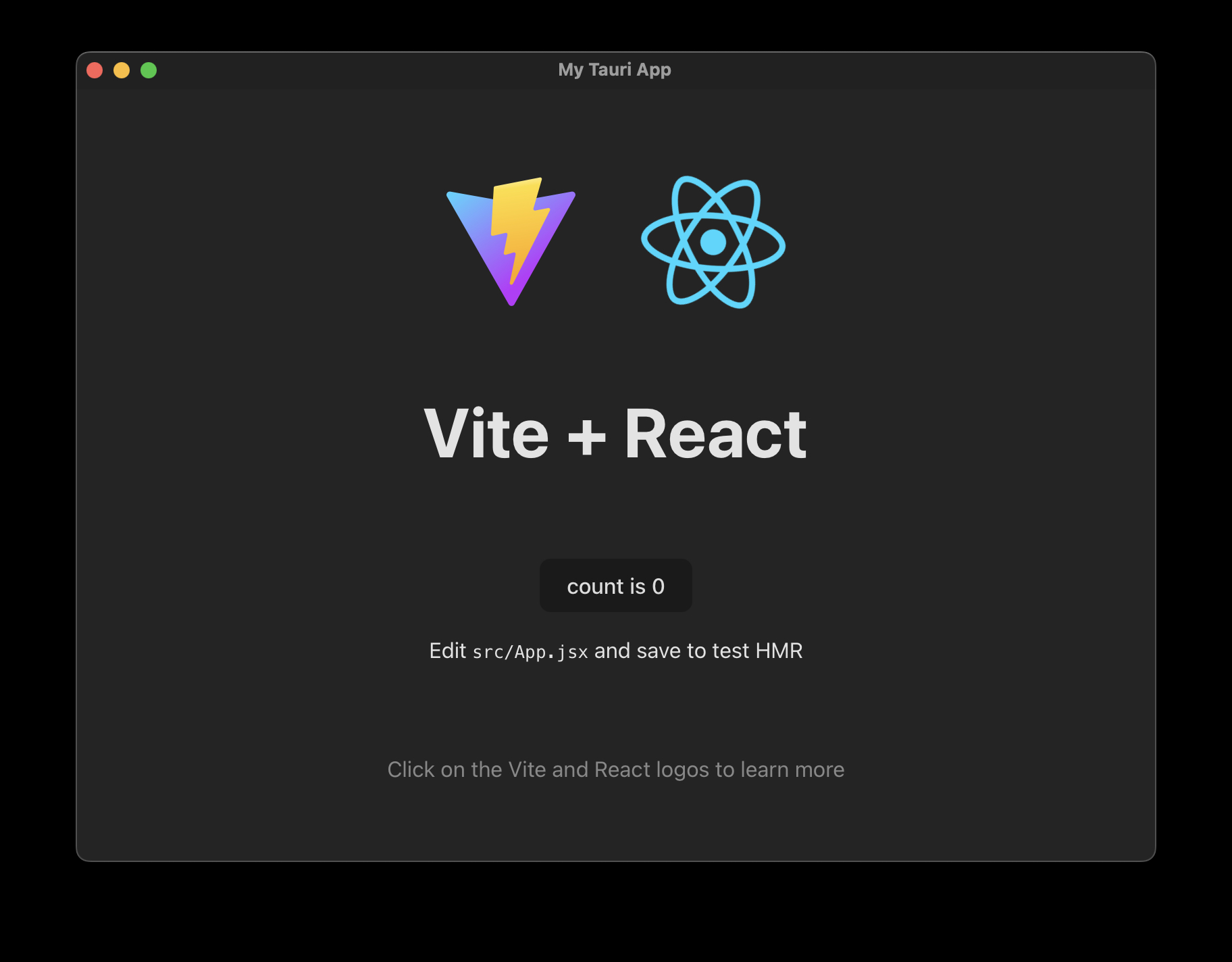
1. Development Mode
You only need a single command:
1
2
# Start the Tauri application
npm run tauri dev
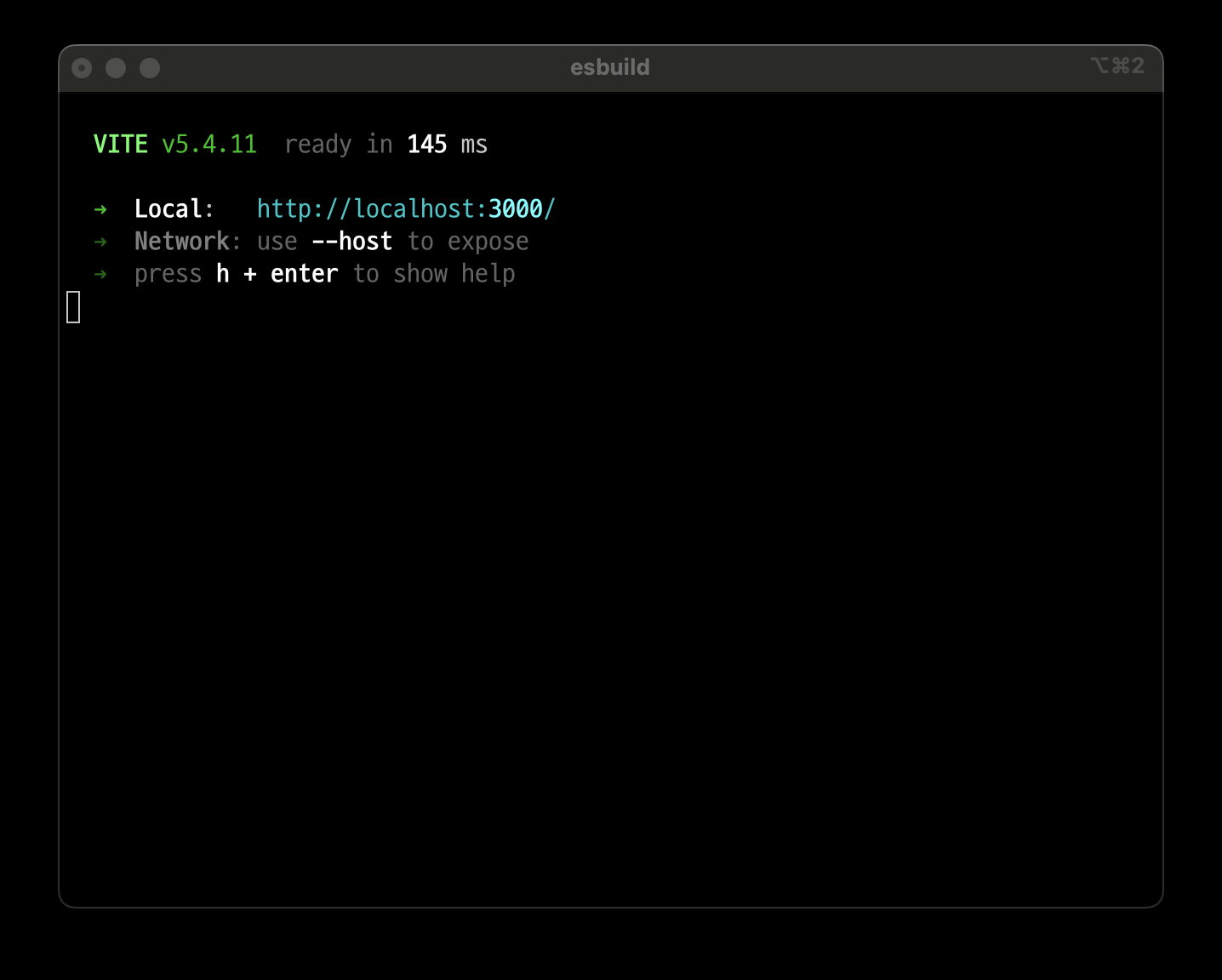
Because tauri.conf.json sets "beforeDevCommand": "npm run dev", running npm run tauri dev automatically starts the frontend dev server for you—there is no need to open a second terminal.
Common Issues and Solutions
1. “cargo not found” Error
1
2
3
# Reinstall Rust
curl --proto '=https' --tlsv1.2 -sSf https://sh.rustup.rs | sh
source $HOME/.cargo/env
2. Frontend Server Not Starting
Check if you see this message:
1
Warn Waiting for your frontend dev server to start on http://localhost:1420/
First run npm run dev by itself as a diagnostic and fix the reported Vite error. Then stop that process and run npm run tauri dev again. Do not leave two Vite servers running: beforeDevCommand already owns the development server in the normal workflow.
3. Port Conflicts
Tauri waits for the exact URL in build.devUrl, so Vite must not silently move to another port. Prefer freeing port 1420. If the application must use 5174, change server.port in the existing vite.config.js to 5174 (keep strictPort: true) and update the corresponding value in Tauri:
In src-tauri/tauri.conf.json, change the corresponding value:
1
2
3
4
5
{
  "build": {
    "devUrl": "http://localhost:5174/"
  }
}
The official Tauri Vite configuration also recommends clearScreen: false, ignoring src-tauri in Vite’s watcher, and mobile-host/HMR settings when developing on physical devices. See the Tauri Vite guide for the complete configuration.
Important Notes
- Directory Navigation
- All npm commands must be run from the project root (my-tauri-app)
- Cargo commands should be run from src-tauri directory
- File Locations
- Frontend code goes in src/
- Rust backend code goes in src-tauri/src/
- Configuration files stay in src-tauri/
- Development Workflow
npm run tauri devauto-starts the frontend dev server via beforeDevCommand- Frontend changes use Vite HMR
- Tauri CLI watches Rust-side changes and recompiles/restarts the native process; this is not state-preserving hot module replacement
- M1 Mac Specific
- The aarch64-apple-darwin target is only needed for explicit-target or cross builds; a normal local build already uses it by default
- Run
rustup update stableand use the Rust version required by the exact Tauri dependencies inCargo.lock; the minimum can rise across Tauri 2.x releases
Building for Production
1
2
# From project root
npm run tauri build
The native executable is written under src-tauri/target/release/. Packaged macOS artifacts are normally under src-tauri/target/release/bundle/macos/ (.app) and src-tauri/target/release/bundle/dmg/ (.dmg). The build command bundles the configured formats by default; distribution outside the App Store also requires signing and notarization. See the official distribution guide.
Troubleshooting Tips
- Clean Build
1
2
3
4
cd src-tauri
cargo clean
cd ..
npm run tauri dev
- Check Dependencies
1 2 3
npm install cd src-tauri cargo check - Inspect Build Artifacts
1
2
file src-tauri/target/release/my-tauri-app
find src-tauri/target/release/bundle \( -type d -o -type f \) | sed -n '1,80p'
Cargo creates the native binary with executable permissions. A routine chmod +x should not be necessary; if permissions were lost while copying an artifact, fix the packaging or transfer process and re-check signing rather than masking it in the source build.
Following this guide step by step will help you set up a Tauri project successfully. Remember to check the terminal output for any errors and refer to the troubleshooting section if needed.